
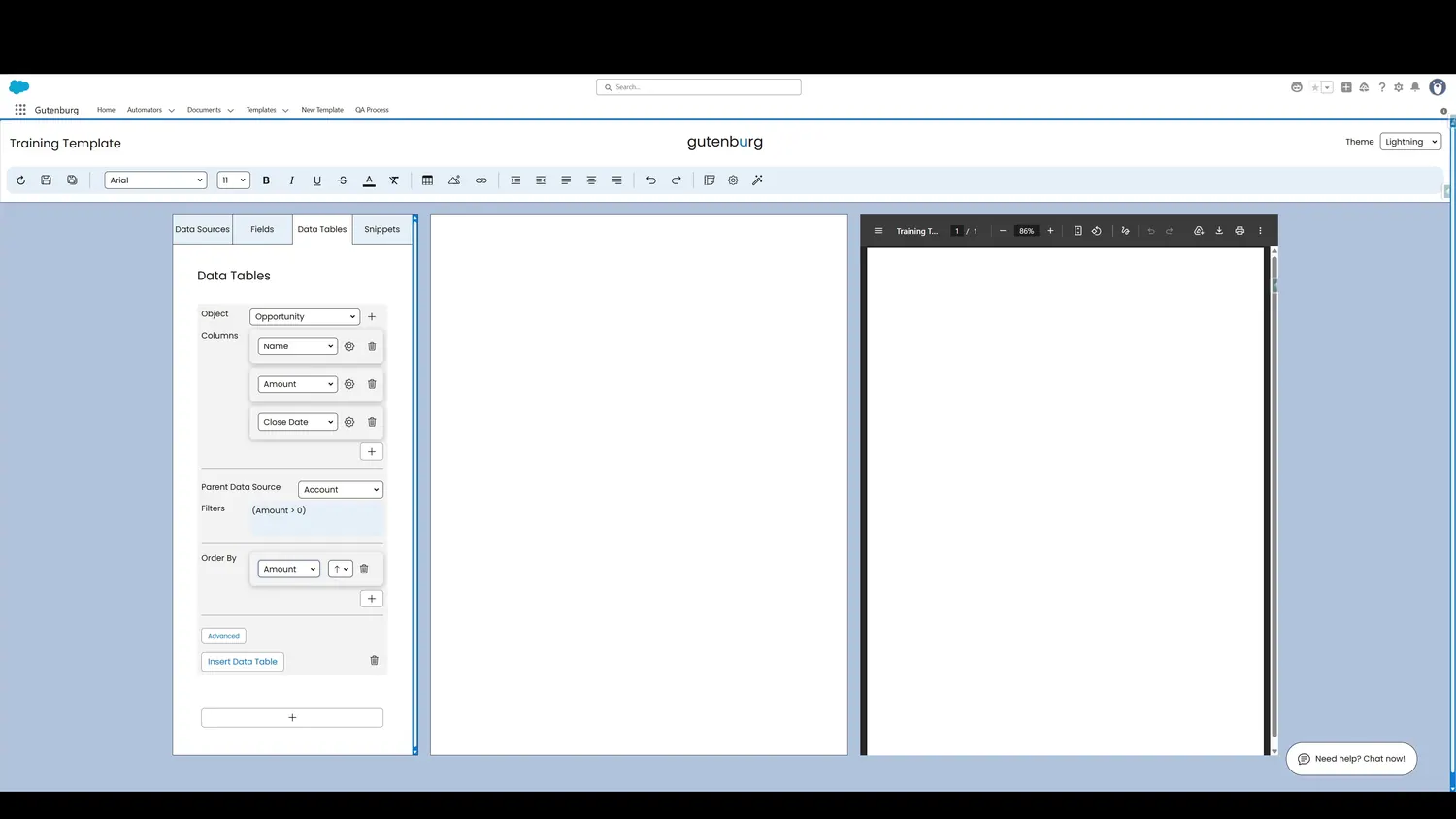
This guide covers insert and preview a data table in Gutenburg. Once the Data Table is configured, click Insert Data Table to add it to the template canvas.
Workflow
- Insert Data TableOnce the Data Table is configured, click Insert Data Table to add it to the template canvas.
- Data Table in CanvasThe Data Table now appears in the Template Canvas, showing the structure of the table.
- Data Table in PreviewThe Template Preview also shows the table with sample data merged in. This makes it easy to ensure that the right data is being retrieved.
Controls and settings
- Insert Data TableOnce the Data Table is configured, click Insert Data Table to add it to the template canvas.
- Data Table in CanvasThe Data Table now appears in the Template Canvas, showing the structure of the table.
- Data Table in PreviewThe Template Preview also shows the table with sample data merged in. This makes it easy to ensure that the right data is being retrieved.
How this fits into a template
Data Tables are designed for repeating Salesforce record data. The tour demonstrates object selection, columns, formatting, parent-source filtering, additional filters, ordering, insertion, preview, and cell-level styling.