
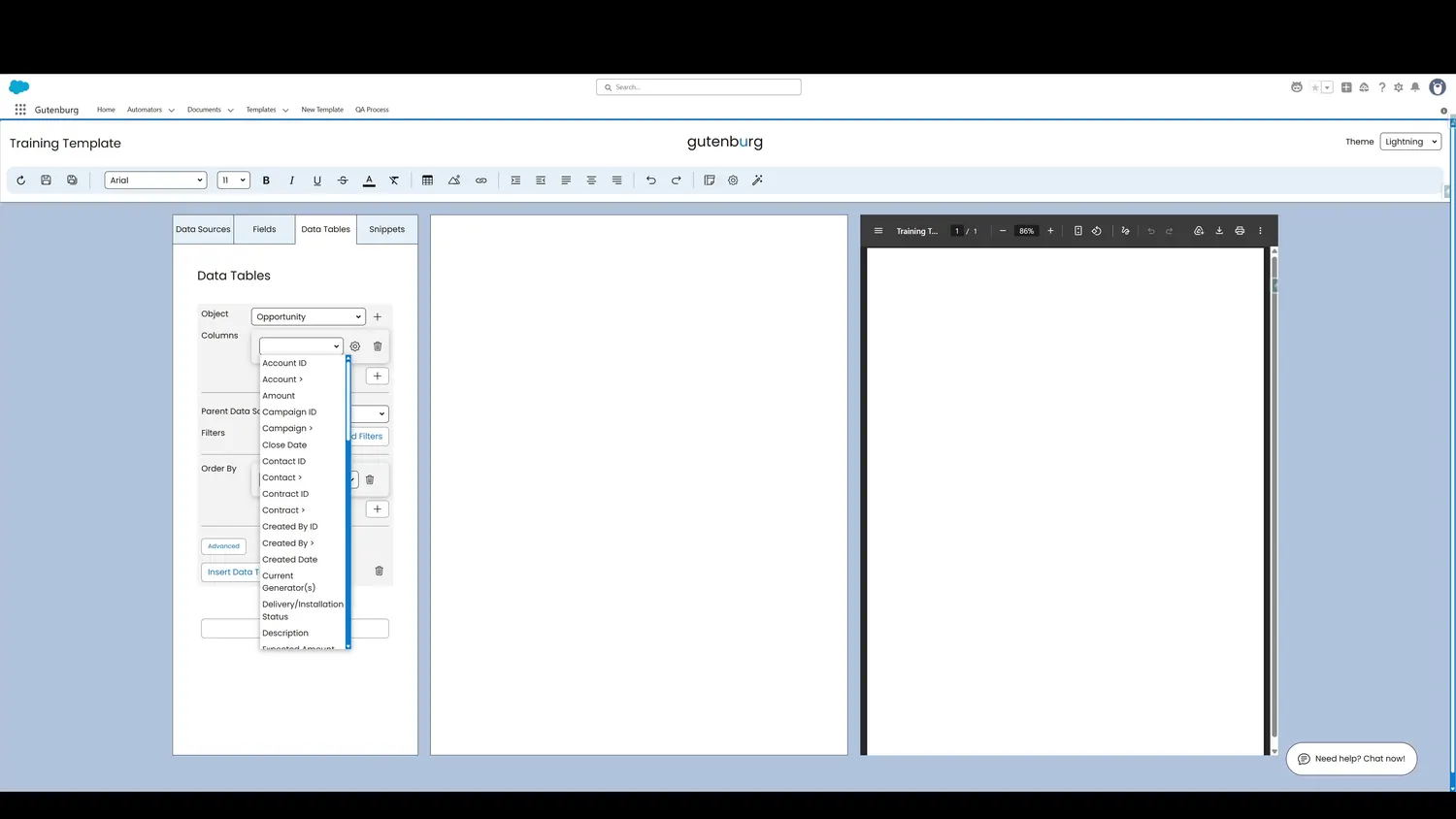
This guide covers add and configure columns in Gutenburg. All of the fields from the source object are available for selection. Choose one to map it to the first column.
Workflow
- Data Table ColumnsAll of the fields from the source object are available for selection. Choose one to map it to the first column.
- Add Another ColumnNow the column is selected. This plus button can be clicked to add as many columns as needed.
- All Columns AddedIn this case, three columns have been added.
Controls and settings
- Data Table ColumnsAll of the fields from the source object are available for selection. Choose one to map it to the first column.
- Add Another ColumnNow the column is selected. This plus button can be clicked to add as many columns as needed.
- All Columns AddedIn this case, three columns have been added.
How this fits into a template
Data Tables are designed for repeating Salesforce record data. The tour demonstrates object selection, columns, formatting, parent-source filtering, additional filters, ordering, insertion, preview, and cell-level styling.