
This guide covers configure images in templates in Gutenburg. Inserting an image involves a few key settings.
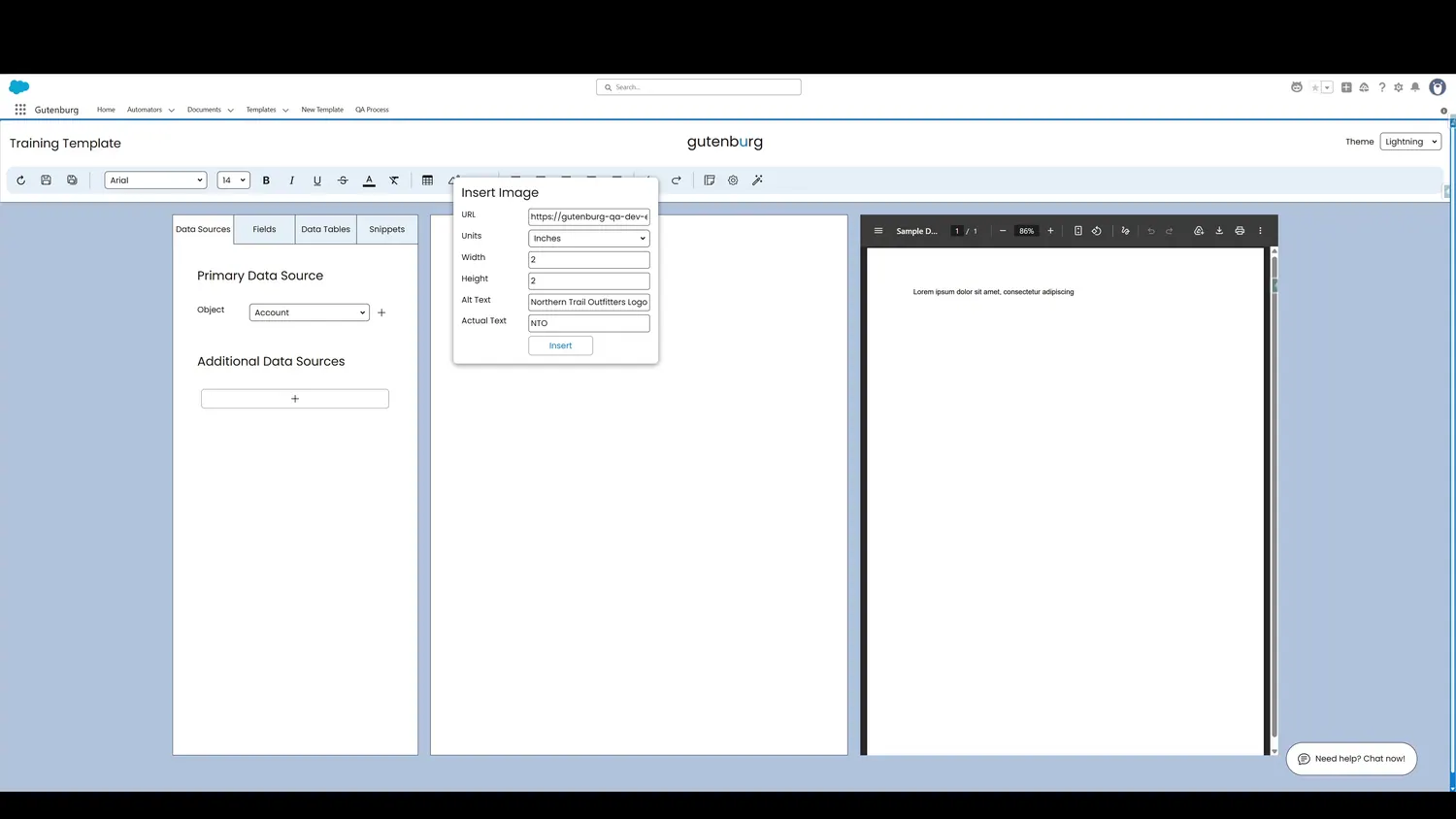
Workflow
- Inserting an ImageInserting an image involves a few key settings.
- Image InsertedAfter Insert is clicked, the image is added to the template.
Controls and settings
- Image URLPaste your image's URL here. The image can exist as a File, a Document, or externally..
- Image Unit of MeasurementSelect the unit of measurement that applies to the image. Inches, centimeters, or pixels can be used.
- Image WidthSpecify the width of the image.
- Image HeightSpecify the height of the image.
- Image Alt TextTo ensure PDF accessibility, apply alt-text to images that describes what the image is.
- Image Actual TextTo ensure PDF accessibility, apply actual text that is a verbatim match of text in the image.
- Insert ButtonClick here to add the image to the template.
- Image InsertedAfter Insert is clicked, the image is added to the template.